
Parameter setting instructions of the G1 camera module
Instruction of parameter setting for the camera module
The G1 camera module is a full-featured camera module developed by Huaxing Video based on the iCatch chip.CameraModulesThe combination has the advantages of low power consumption, high performance, fast operation, simple use, and rich functions, which can better meet the needs of users for shooting. So how to set the parameters of the G1 camera module to obtain more satisfactory photos or videos?
The G1 camera module can be set up in three ways to meet the product needs of different users. The following are the parameters of the G1 camera module:
1. APP sets the camera module parameters
G1 camera module connects to APP via Wifi (G1 Camera Module Wifi Connection APP Operation Instructions), you can preview the camera image, control the camera module to take photos and record videos, set parameters, set the camera module IP, etc.
After connecting the camera module, it will enter the video recording mode by default and display the preview screen. Click the icon in the upper right corner of the screen to enter the "Video Recording Settings" interface, where you can set the video resolution, white balance, timestamp, image stabilization, power-on recording, formatting, check the device version number, check the APP version and other functions.
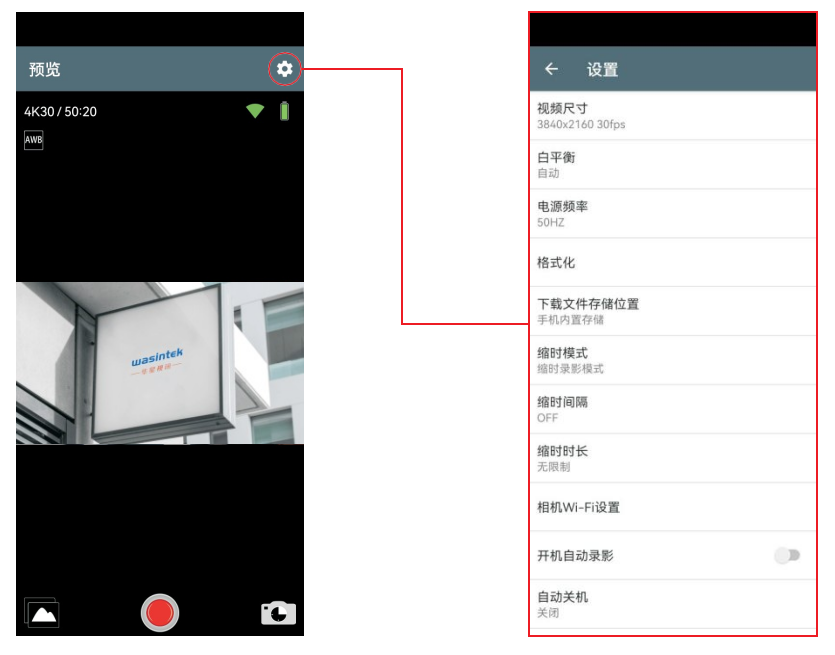
Note: The actual functions may vary depending on the expansion board used; please refer to the corresponding product specifications for details. The actual use shall prevail.
Click Mode to switch to Photo mode. Click the icon in the upper right corner of the screen to enter the Photo Settings interface, where you can set image size, white balance, date stamp, start recording, format, check device version number, check APP version, and other functions.
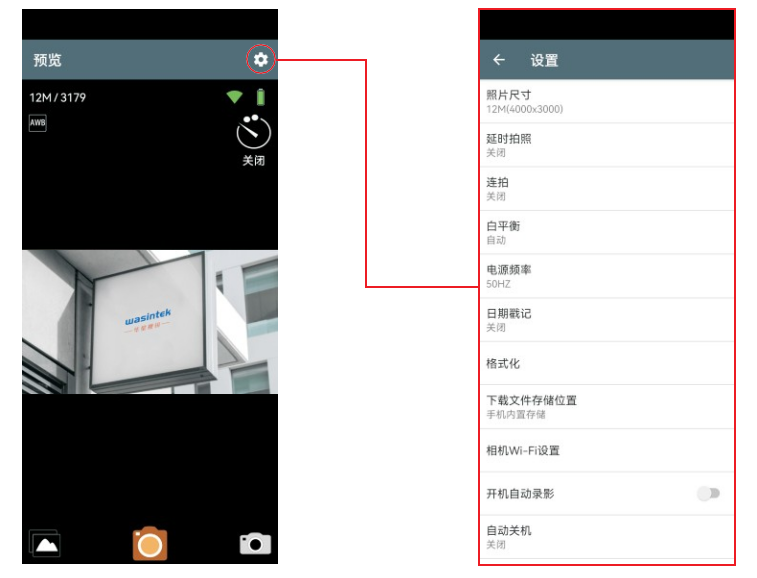
Note: The actual functions may vary depending on the expansion board used; please refer to the corresponding product specifications for details. The actual use shall prevail.
G1 Camera Module APP Instructions
2. Touch the screen to set the camera module parameters
The G1 camera module with Wifi board can be connected to the specified display and touch screen through the display interface. The touch screen can be used to preview the camera image and set parameters.
After the camera module is turned on, it enters the video recording mode by default and displays the preview screen. Click the setting icon in the lower left corner of the touch screen to enter the "Video Recording Settings" interface, where you can set video resolution, frame rate, slow motion, fast motion recording, time-lapse interval, duration, pre-recording, EIS anti-shake, image quality enhancement, image rotation, distortion correction, metering mode, video file length, loop recording, recording volume, time watermark, Pro settings (scene mode, color temperature, ISO, shutter, exposure compensation), etc.
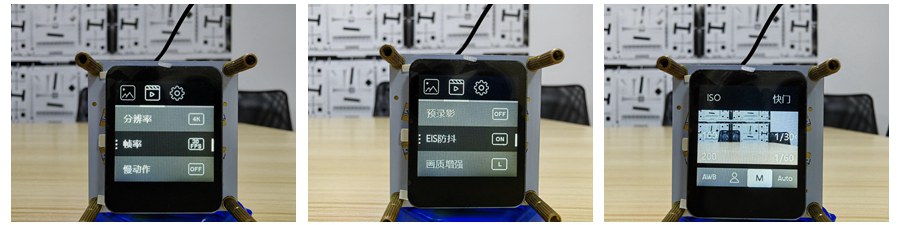
Click above to switch to the "Photo Settings" interface, where you can set the resolution, countdown, distortion correction, time-lapse photo interval, time-lapse duration, time watermark, Pro settings (scene mode, color temperature, ISO, shutter, exposure compensation), etc.
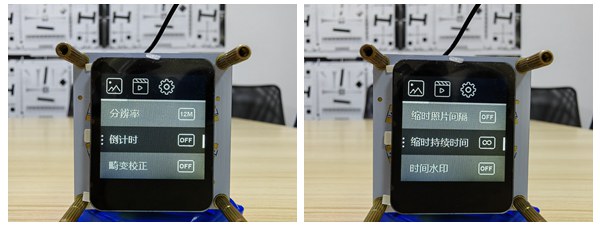
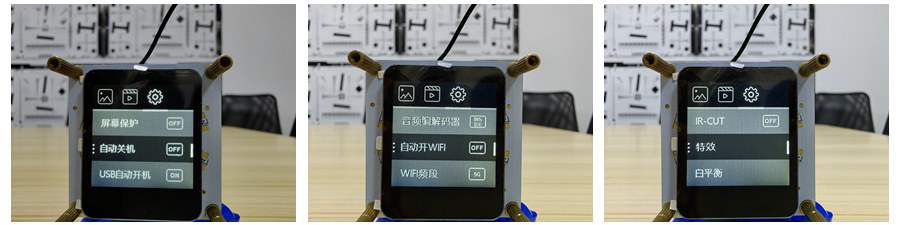
Click on the top to switch to the "Camera Settings" interface, where you can set screen saver, auto power off, USB auto power on, power on recording, language, light source frequency, key tone, system volume, sound selection, audio codec, automatic WIFI on, WIFI frequency band, WIFI mode, display brightness, display settings, fill light, IR-CUT, special effects, white balance, date and time, format, reset, card information, and device information.
3. Configuration file sets the camera module parameters
Any combination of G1 camera modules can set parameters through configuration files. Each camera module has its own configuration file and cannot be used universally. For example, a G1 camera module using the 377 module can only use the configuration file of the IMX377 module, and cannot use the configuration file of the IMX258 module.
The configuration file can set all the parameters in the above APP and touch screen, and can also set HDMI output settings, UVC output code stream, etc.
After modifying and saving the configuration file, put it in the root directory of the TF card, put the TF card into the G1 camera module, turn it on, turn it off, and then turn it on again to take effect.
The G1 camera module has no wifi function and no touch screen, and its parameters can only be set through the configuration file.
If you haveBuy G1 Camera ModuleIf you need to obtain the configuration file, please contact the docking staff.