The operation instructions for the network port of the G1 camera module
The operation instructions for the network port of the camera module
The G1 camera module is a full-featured camera module combination developed by Huaxing Video based on the V39M chip of iCatch Technology, including the camera core motherboard,Camera module, a WIFI expansion board/network expansion board can be added according to the needs. The G1 camera module with the network port expansion board supports the rtsp protocol and can be connected to a computer or router via an Ethernet cable to perform rtsp streaming to preview the camera module's image in real time.Here are the specific steps:
Network port connection method
The G1 camera module is equipped with a network port board. There is a network port interface on the network port board. The purchased network port board will have a standard terminal line. Insert the terminal line into the network port interface.The other sideConnect the network cable according to the pin definition of the network port interface.
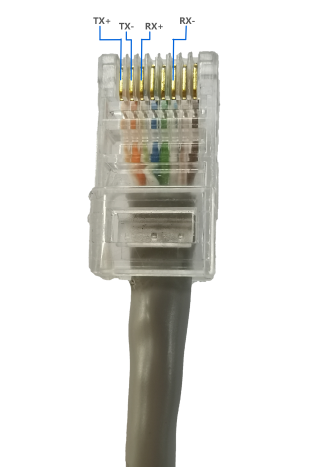
The terminal cable of the network port is connected to the network cable.According to the corresponding version of the network port boardpinDefinition to connect the network cable. Because the network cable models or line sequence colors on the market are different, if the network cable is connected incorrectly, the network port cannot be pinged and the network port function cannot be used normally.Take the T568A standard network cable as an example.One end of the crystal plug is the reference point, the part of the network cable crystal plug facing downward, the gold bar facing upward, and the network cable line sequence and network port board pin definition connection are shown in the figure:
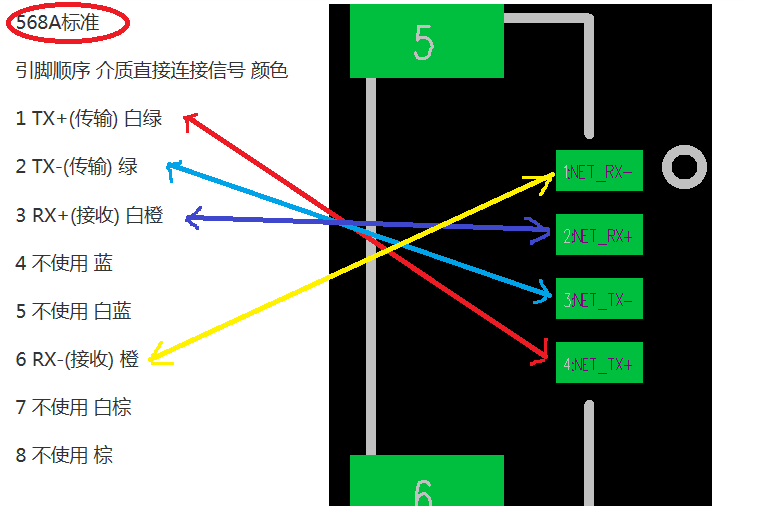
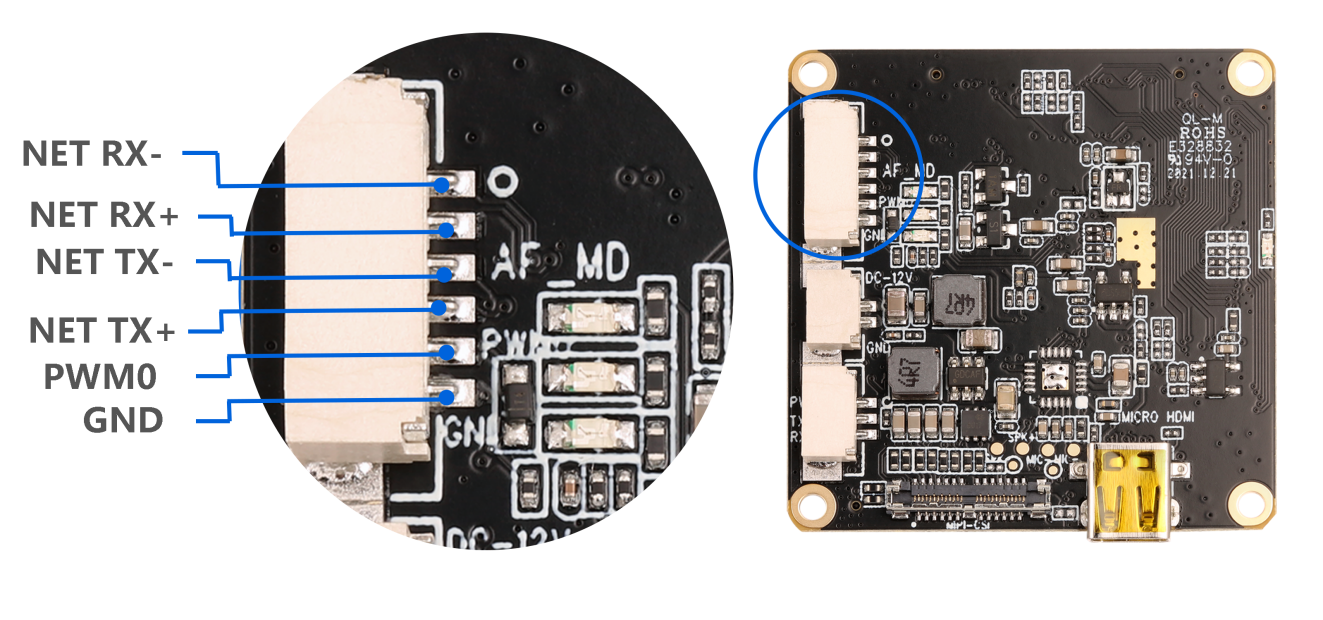
▲G1-N-V4.0 network port board

▲G1-N-V5.0 network port board
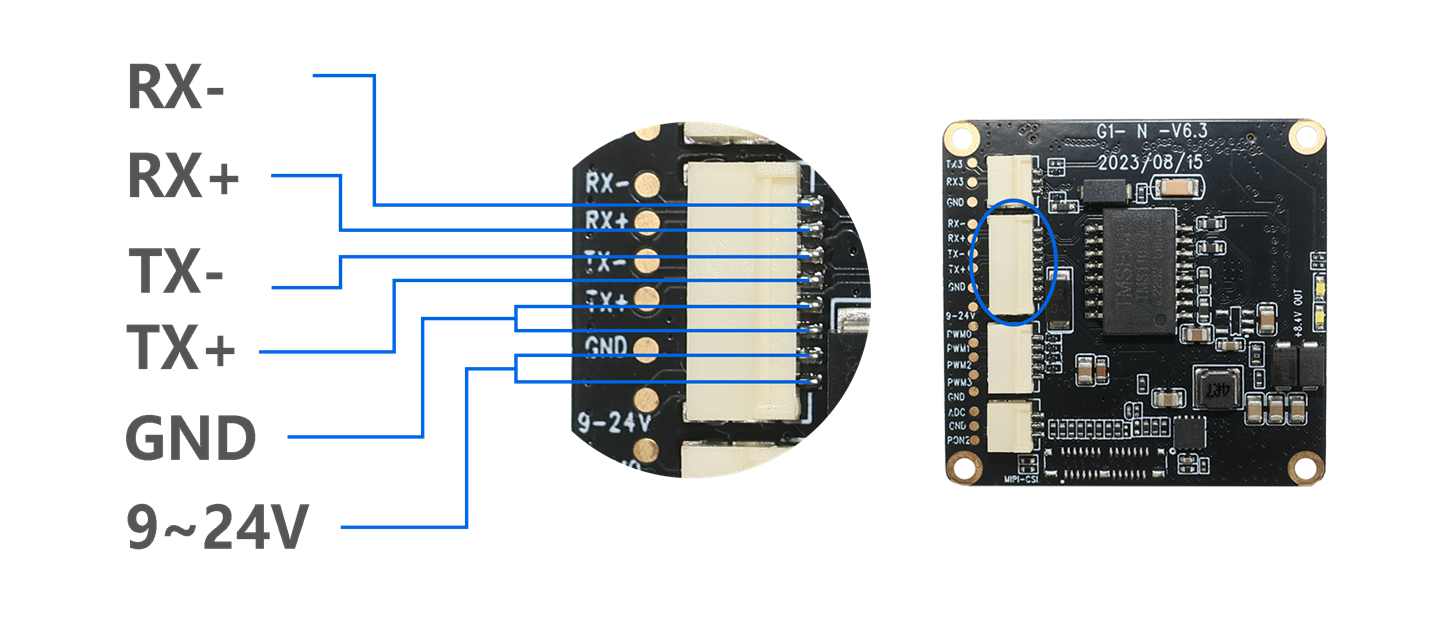
▲G1-N-V6.3 network port board
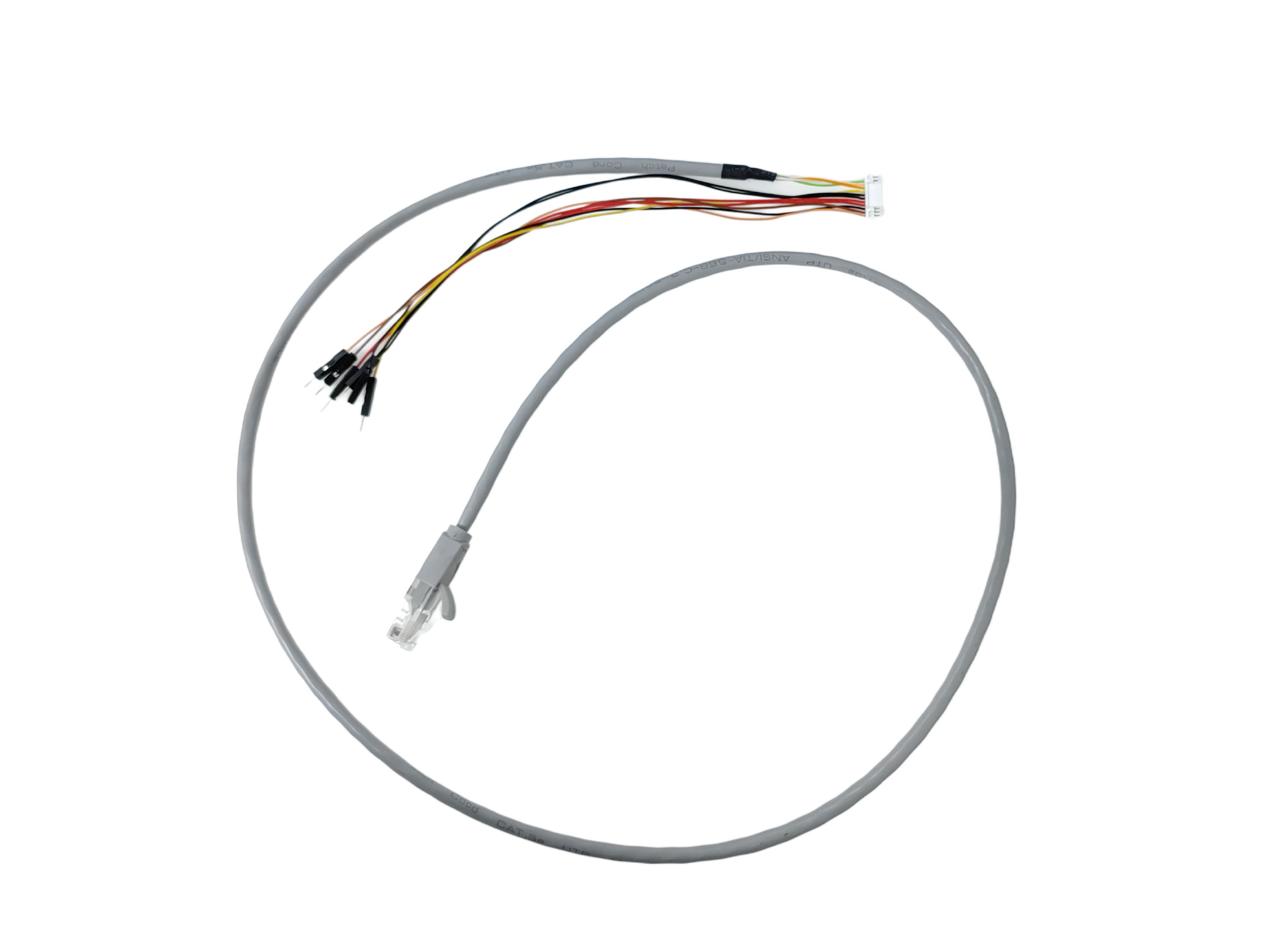
▲G1-N-V5.0 network port board uses a network cable connected by a terminal cable
Three ways to use the network port
Method 1: Connect the network cable to the image transmission board
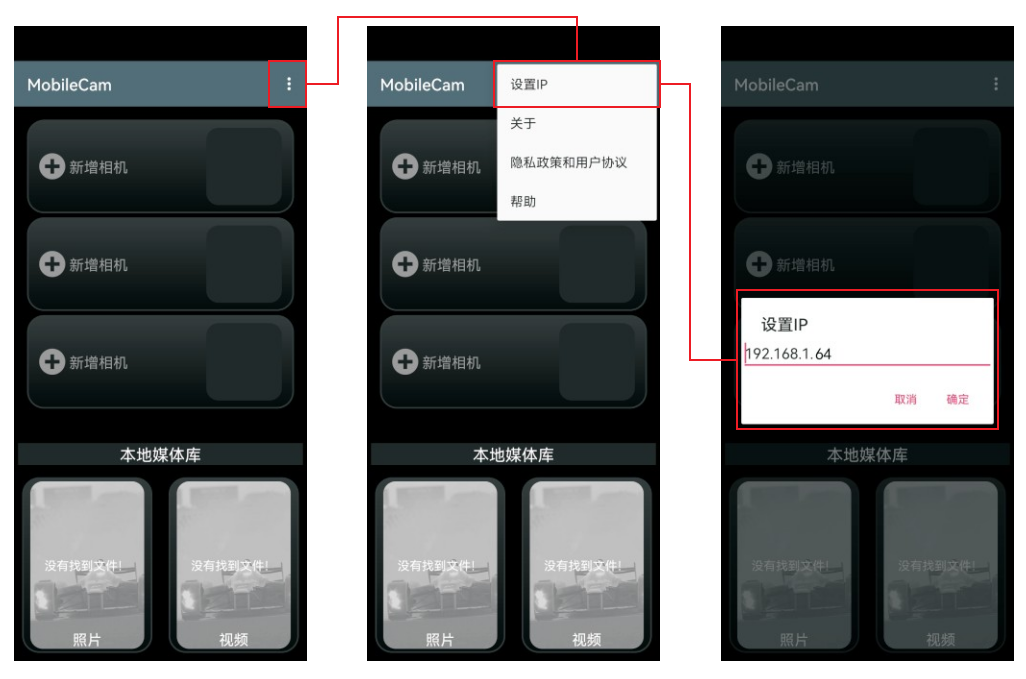
Through the network port of the network port boardThe pin defines the connected network cable.Transfer to the image transmission board (4pinConnection interface), after the G1 camera module is turned on, the mobile phone is connected to the image transmission boardwifi,useAPPControl the camera module to record, take photos, play back, set parameters, etc. Note:APPofIPThe address is set to 192.168.1.64.
Note: When connecting the network cable through the network port terminal cable of the network port board, you need to use a standard network cable (copper wire). Do not use aluminum wire or other wires with large line loss. Otherwise, it is easy to ping but fail to pull rtsp.
Method 2: Connect the network cable to the router
Through the network port of the network port boardpin defines the connected network cable, connect to the router,G1 Camera ModuleAfter booting up, the indicator light on the network port board turns red and stays on, indicating that the camera module is connected to the router network. Connect the mobile phone to the same network as the G1 camera module (that is, the mobile phone is connected to the router's wifi), and thenAPPofIPThe address is set to 192.168.1.64, after adding the corresponding camera, you canAPPControl the camera module to record, take photos, play back, set parameters, etc.
Or connect your computer to the router network and open thePotPlayerPlayer, click the upper left corner of the setting, the main menu drop-down list will be displayed, move the mouse to "Open" and click "Open Link", enter the rtsp streaming address“rtsp://192.168.1.64:554/H264?W=1280&H=720&BR=2000000&FPS=30”,Click OK to start rtsp streaming and display the image of the current camera module.

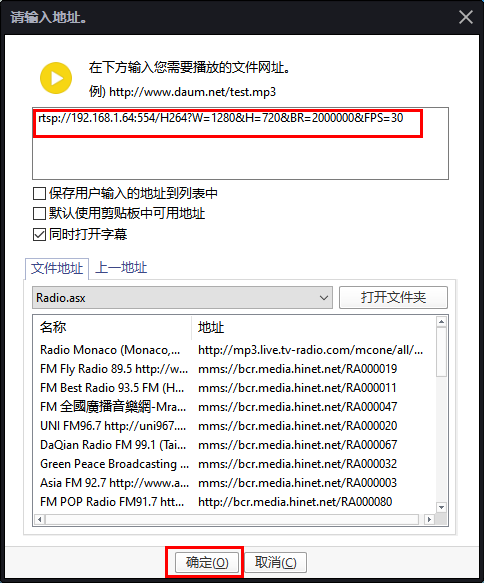
Tip: If you still cannot connect to the network after using the operation process of method 2, it may be that the gateway of the router is not 192.168.1.xx. At this time, you need to enter the router and change the gateway IP address to 192.168.1.xx (xx represents a number).
Method 3: Connect the computer via network cable
Through the network port of the network port boardpin defines the connected network cable, one end of the crystal head network port is directly connected to the computer;
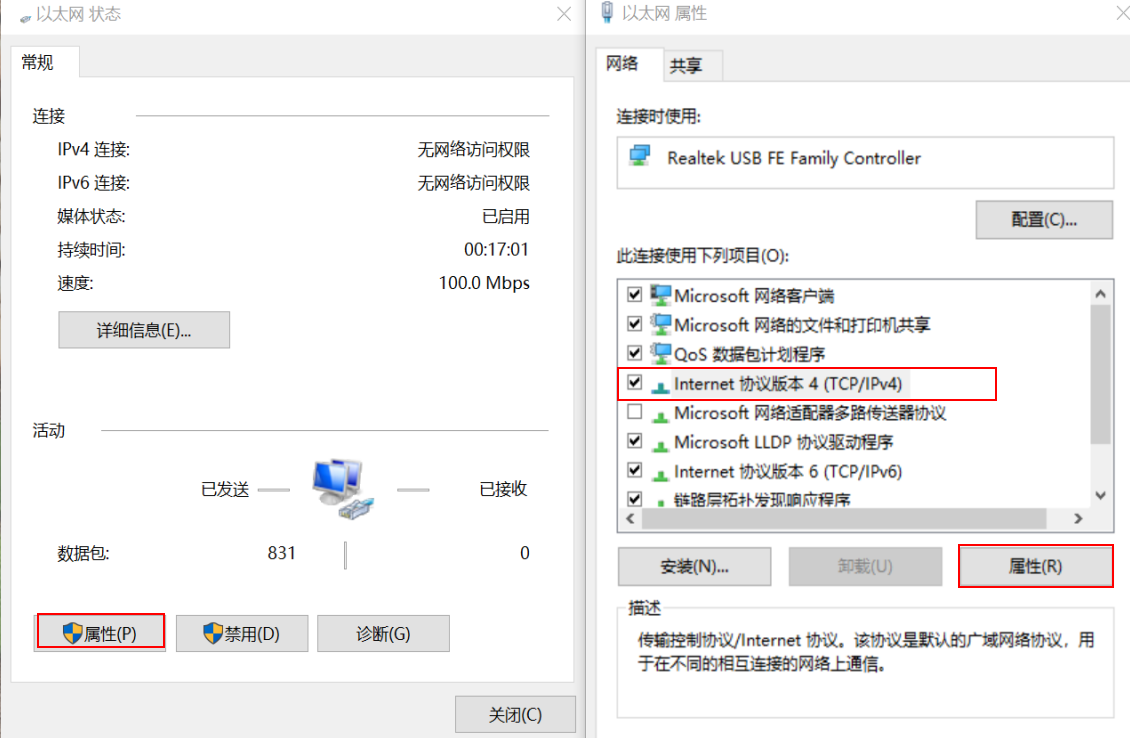
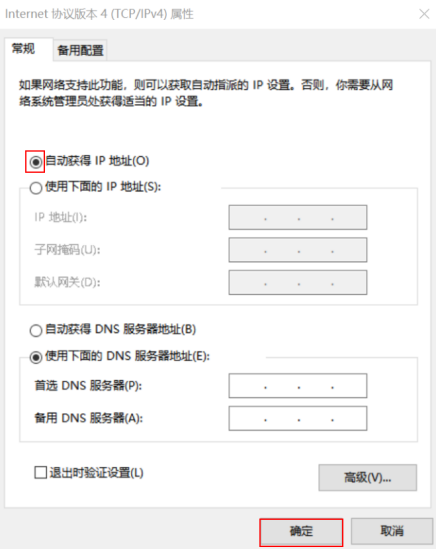
The computer enters the "Network andInternet”, select “Change adapter options”, right-click and select “Ethernet” or “Local Area Connection”, select “Status” in the pop-up prompt box, then click to enter “Properties”, click “InternetProtocol version 4 (TCP/IPv4)" and then click to enter "Properties", click "Use the followingIPaddress”, set the computer localIPaddress;(Note: The computer IP address needs to be set to a network other than 192.168.1.64IP,That is, the last digit is not 64)
After the computer IP address is successfully set, the computer callscmdEnter the command "ping 192.168.1.64", check whether there is communication.The following figure showswin10 The operation process of the system is used as an example:

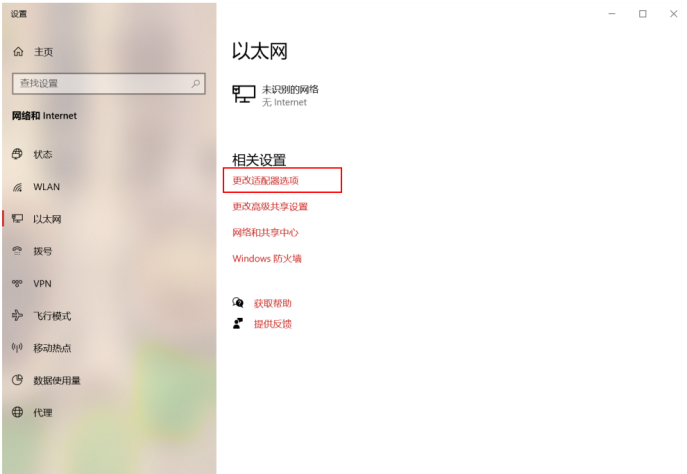
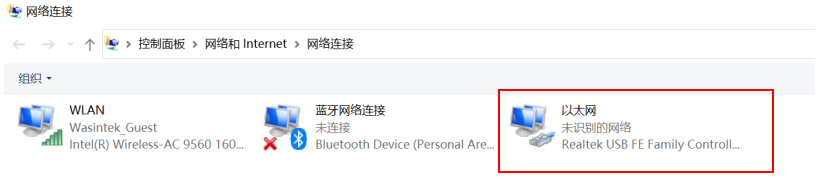
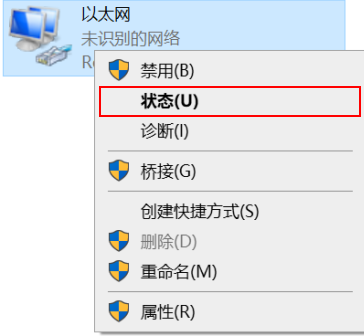
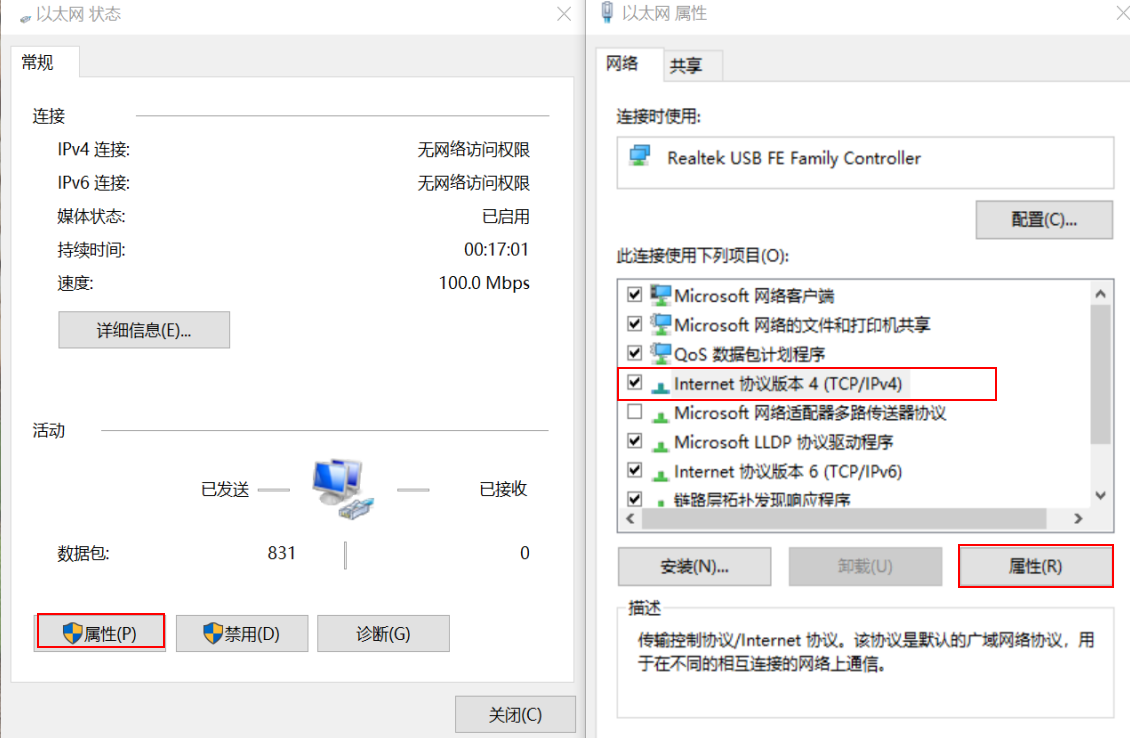
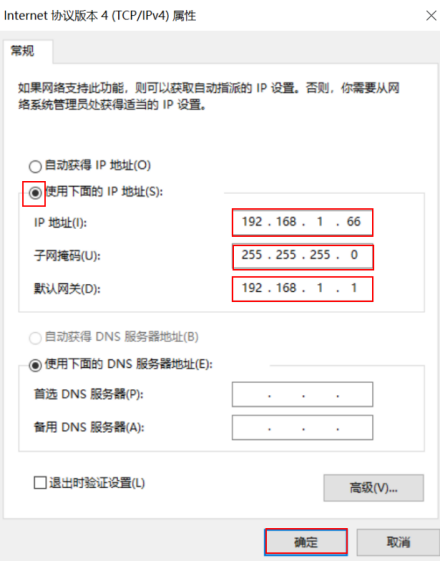
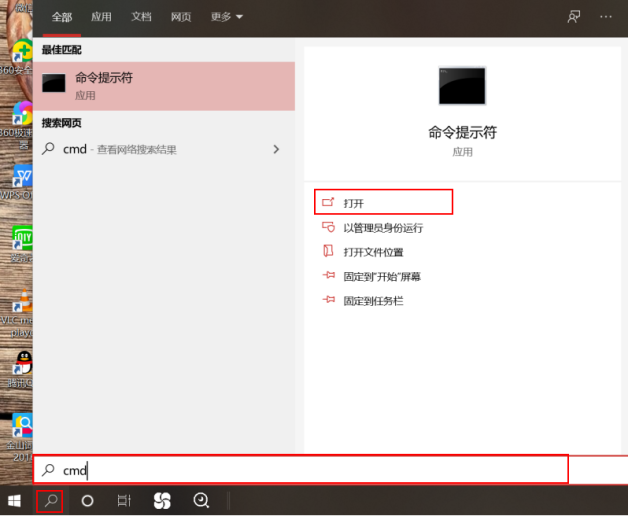
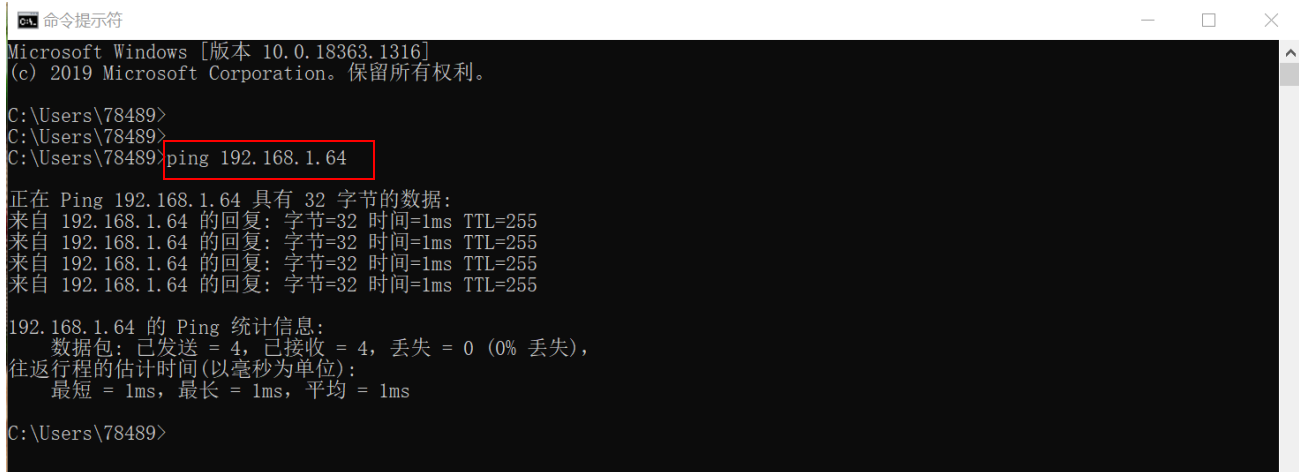
As shown above, the computer displayspingThen open the installedPotPlayerPlayer, click the upper left corner of the setting, the main menu drop-down list will be displayed, move the mouse to "Open" and click "Open Link", enter the rtsp streaming address“rtsp://192.168.1.64:554/H264?W=1280&H=720&BR=2000000&FPS=30”, and then click OK to display the image of the current camera module.
Note: After using method 3, if you need to restore the desktop computer's network to an Internet-capable state, you need to disconnect the network cable connecting the camera module to the computer and then plug in the Internet-capable network cable.InternetProtocol version 4 (TCP/IPv4)" to restore the settings in "Properties" to their previous state, as shown in the following figure: