Operation Instruction of G1 Camera Module USB Connected to Computer in PCCAM Mode
Operation Instruction of Camera Module USB Connected to Computer for Outputting Images
The G1 camera module is a full-featured camera module combination developed by Huaxing Video based on the V39M chip of iCatch Technology, including the camera core motherboard,Camera module, a WIFI expansion board/network expansion board can be added according to needs.
The G1 camera module is equipped with a USB interface on the camera motherboard.UVCAgreement, which can be used asUSBCamera products can be used without driver installation. Supportamcap.exe、PotPlayerPlayer; Supportwin10The system's computer's built-in camera outputs images, and the files recorded and photographed using the computer's camera tool are stored in the computer's photo album.
Notice:PCCAMCamera mode, supports computerwin7/win10/XPAnd other systems.
The followingPotPlayerThe player is used as an example to describe the use and setup process of connecting the G1 camera module to the computer via USB to output images. For the first time use, you need to installPotPlayerPlayer.
1. G1 camera module usageUSBConnect to the computer, the camera module automatically turns on after USB power is turned on, and enters the defaultINDisk mode;
2. Short press the power button (Akey), the camera module entersPCCAMmodel;
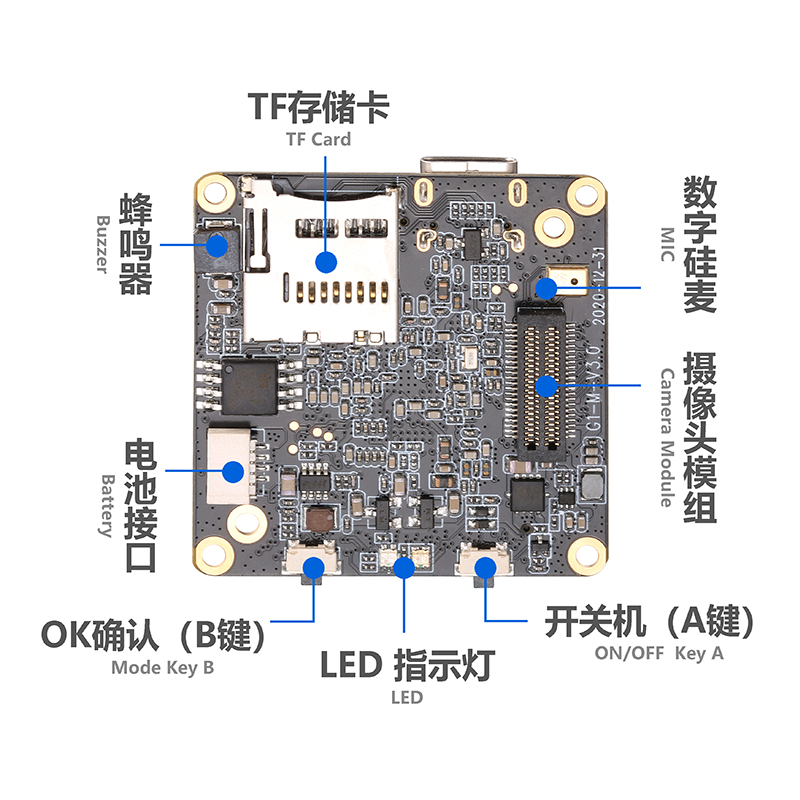
▲G1-M-V3.0 camera motherboard
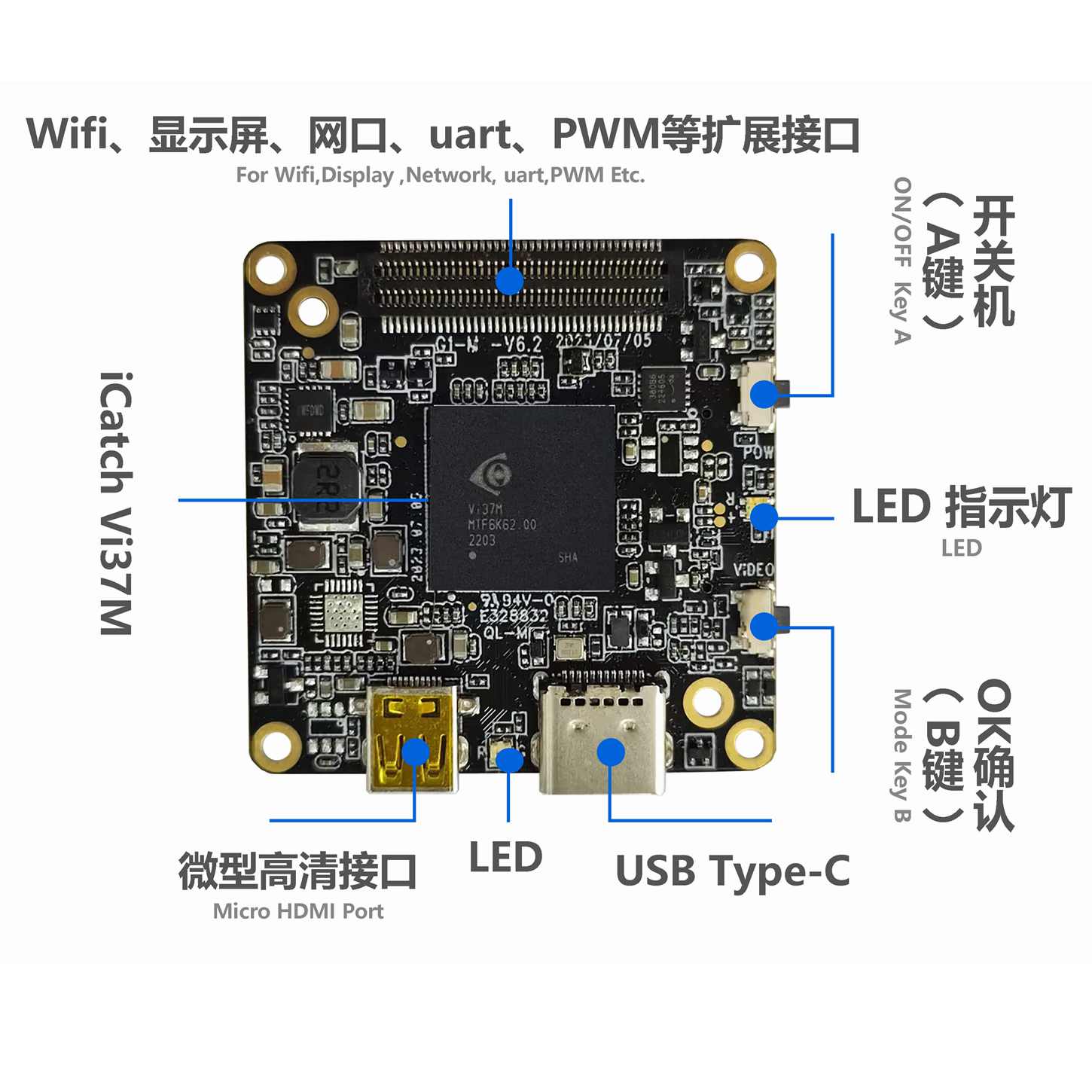
▲G1-M-V6.2 camera motherboard
3. Go to "Computer" "Management" "Device Manager" on your computer to see if there is an "Image" column and the machine device name is recognized.wasintek”;Win10 system, in the computer "Computer" "Management" "Device Manager", "Camera" column, identify the machine device name "wasintek”;
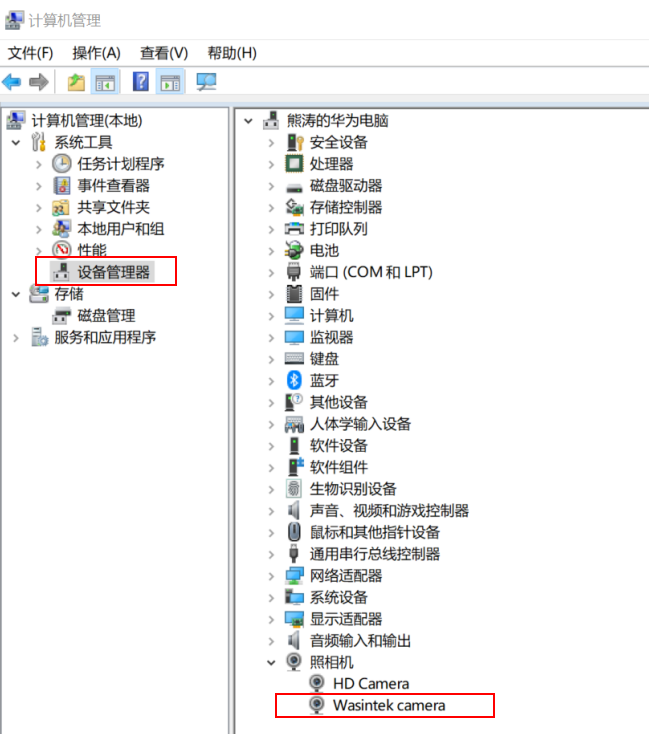
4. After ensuring that the above points are used as required, open thePotPlayerPlayer, click the upper left corner of the mouse to open the main menu drop-down list, move the mouse to open and then move to the list on the right, left-click "Device Settings", select the "Camera" column, and then in the "Device" item, select the machine device name that is identified.wasintek", then click "Open Device" in the lower right corner to print the image;


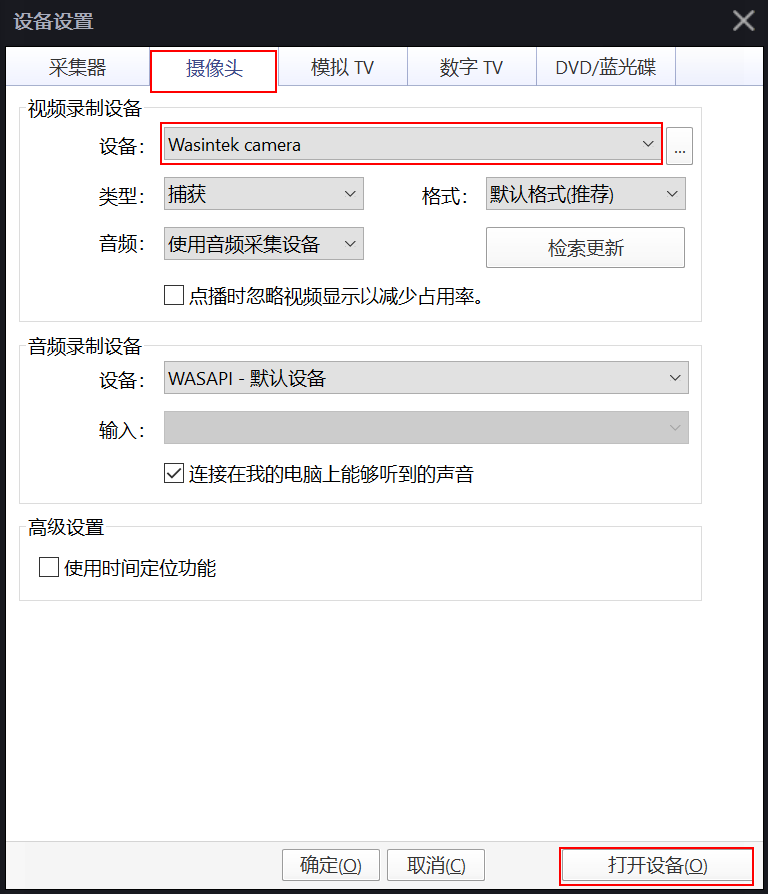
5. If there is still no image after completing the above steps, you need to install the driver.K-Lite_Codec_Pack_1410_Full.exe”【K-Lite_Codec_Pack_1410_Full】, after installing it on your computer, unplugUSBThen reconnect the cableUSBline, and see that the machine is turned on; then open the "PotPlayer" tool, repeat step 4 to see if there is a picture output.
PCCAMIn mode, even the computer can modifyPCCAMThe preview video resolution of the mode can be modified as follows:
Make sure the machine automatically enters after connecting to the computerINDisk mode, short press the power button (Akey) to enterPCCAMmode, turn on "PotPlayer"Player, click the upper left corner to open the main menu drop-down list, move the mouse to open and then move to the list on the right, left-click "Device Settings", select the "Camera" column, and then in the "Device" item, select the machine device name that is identified"wasintek”, then in the “Format” option, selectPCCAMAfter selecting the output resolution of the mode, click "Open Device" in the lower right corner to display the current device screen.

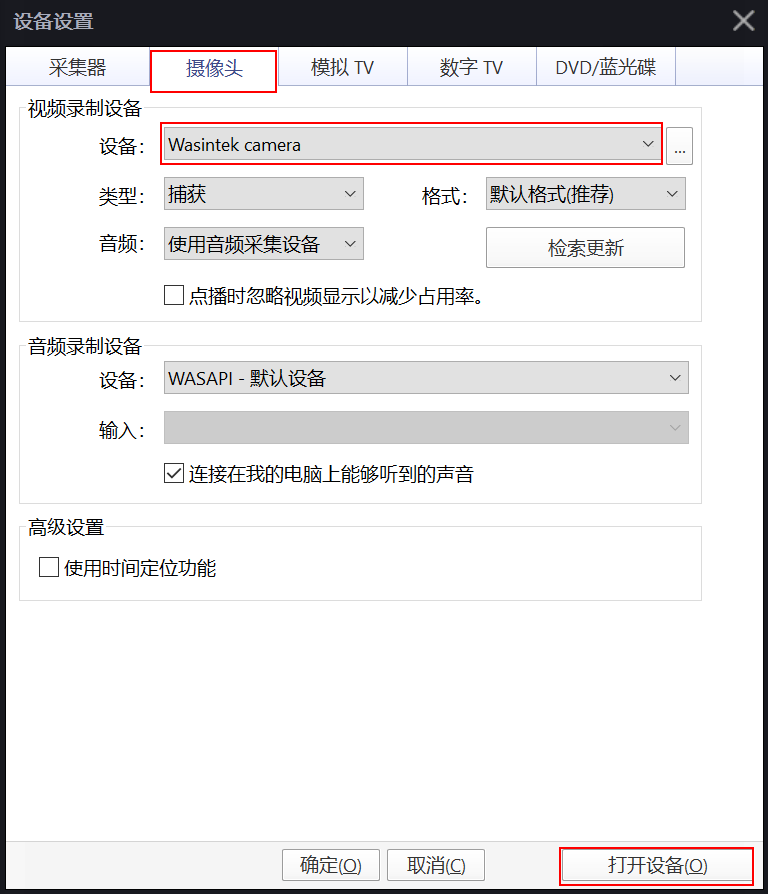
PCCAMIn this mode, the device records:USBConnect to the computer and enterPCCAMmodel,PotPlayerAfter the player displays the image, short press the confirmation button (Bkey) to start recording, the red light flashes during recording; short press againBbutton to stop recording.
Note: Due to differences in the resolutions supported by the players, the video may not be fully displayed.G1 The USB camera resolution supported by the camera module.uncle" tool to view and modify the supported compression format, resolution, and frame rate.
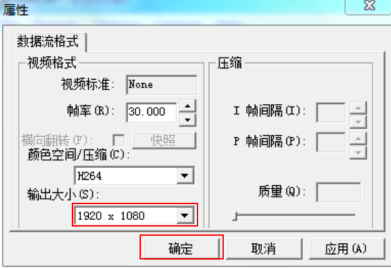
Modification steps: Make sure the machine is connected to the computer.PCCAMMode output, open "amcap.exe” tool, selectOptionsSelect "Video Capture Pin..." Modify the resolution in the pop-up window. After the modification is successful, click "OK" to make it effective.
As shown in the following figure: